Filters
The Filters let users trim AFP files by filtering or removing selected items.
Basic Filters
Basic filters are flexible and support a wide range of use cases. Below are some examples.
Ex 1: Remove Non-Printable Info
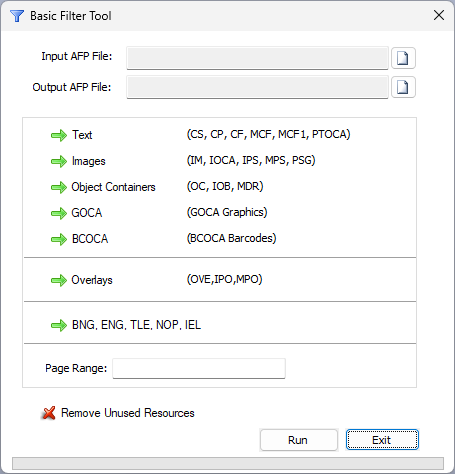
To remove the non-printable information, Turn off the option below to remove structured fields BNG, ENG, TLE, NOP, and IEL:

Ex 2: Extract Selected Pages
Extracting just selected pages from a large document is straightforward. Use the Page Range option to extract specific pages from a large document, such as 1500-1600;2100-2200, to select pages 1500 to 1600 and 2100 to 2200.
Ex 3: Remove Unused Resources
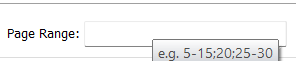
If only a small subset of pages is extracted from a large document, the resulting output may still contain many unused resources. Enable the option below to remove unused resources:

Ex 4: Extract Text Only
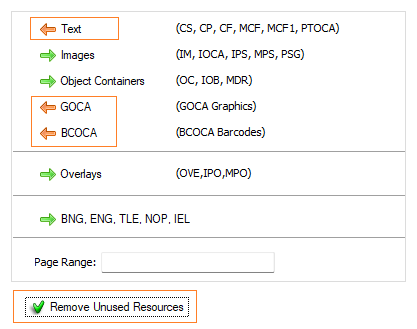
Extract Text Only, Removing All Images, Barcodes, Graphics, and Unused Resources
This option leaves only the text, removing all images, barcodes, GOCA graphics, object containers, non-printable information, and unused resources.
Ex 5: Extract Images Only
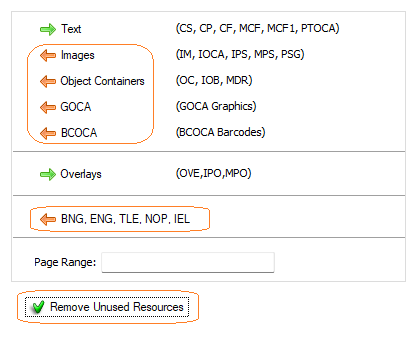
Extract Only Images and Object Containers
This option extracts only images and object containers, removing all text, graphics, barcodes, and unused resources:
Ex 6: Combine Filters
Combine Filters for Specific Output
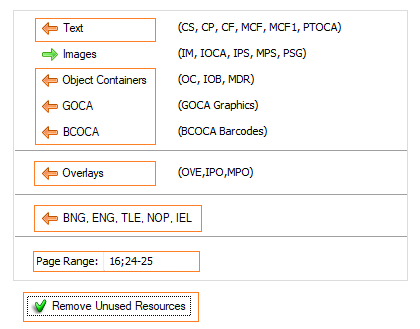
You can combine filters to achieve specific results. For instance, to extract only images from pages 16, 24, and 25—without including any text, graphics, barcodes, object containers, or non-printable information—and to remove unused resources, use the combined filters below:
Advanced Filters
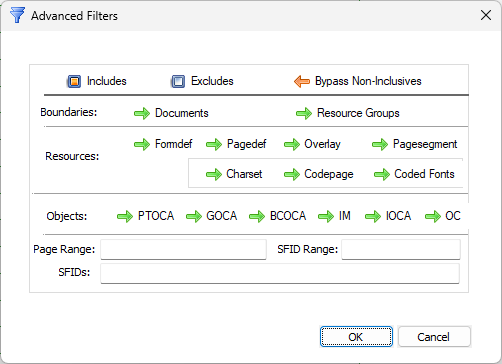
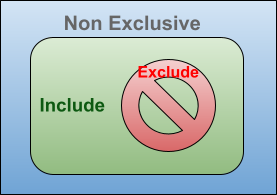
The Advanced Filters offer greater flexibility and precision compared to Basic Filters. They enable filtering at the object level (document, page, resource, etc.) as well as the field level. Additionally, filters can be applied to specific sections of a file, rather than the entire document.
Although they can be used in a variety of situations, some basic examples are listed below:
Ex 1: Remove IPS from a Page
To remove all IPS images from page 15 only while keeping the rest of the document unchanged, apply the following selections:
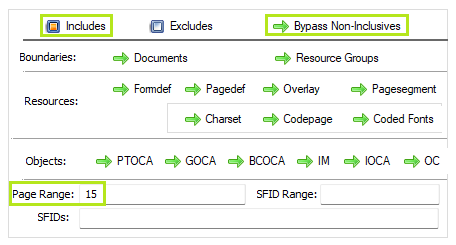
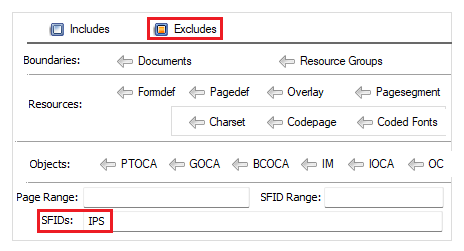
To retain only page 15 with IPS images removed and delete all other pages, disable the Bypass Non-Inclusives option:

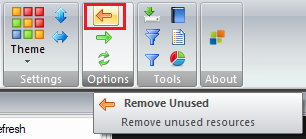
After extracting only page 15, there may be unused resources left in the file. To remove these unused inline resources, click the Remove Unused button from the options menu:
Ex 2: Extract IPS from Document
Extract IPS Commands from Document Pages Only
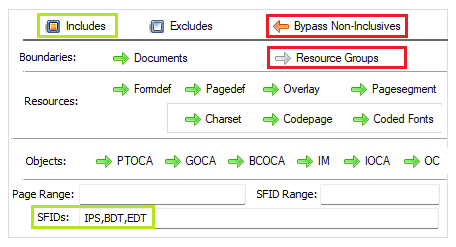
To extract all IPS commands from the document pages (excluding overlays), use the options below:
Ex 3: Extract IPS from Page Range
Extract IPS Commands from Specific Pages
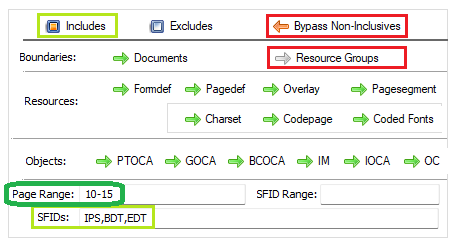
Similar to Example 2, to extract IPS commands from pages 10 to 15, add a Page Range filter:
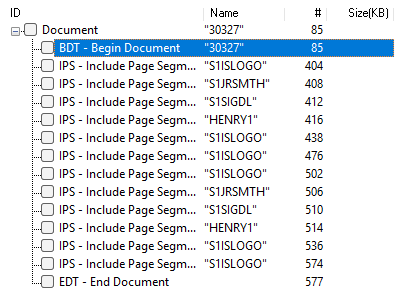
Here you can notice that the only fields remaining are BDT, EDT, and IPS.
To check the respective page numbers for these IPS commands, add BPG, and EPG to the allowed SF list:

This will give us the page numbers as well: